TrueStitch Link is a small free app for the computer next to your embroidery machine. It watches your Cloud queue and writes every paid order's machine file into the machine's memory by itself — no copying files, no flash drives. This guide covers installation on Windows and macOS and pairing with your workshop.
Before you start
- You need a TrueStitch Cloud account — it's created automatically when you install the Shopify app.
- That's all. Your machine can already exist in Cloud → Machines, or you can create it right inside Link during setup.
Download
Get the installer from the download section on this site, or directly:
- Windows: cloud.truestitch.io/api/download?os=win
- macOS (Apple silicon): cloud.truestitch.io/api/download?os=mac
Both links always point to the latest version, and the app updates itself silently after that.
Install on Windows
- Run the downloaded
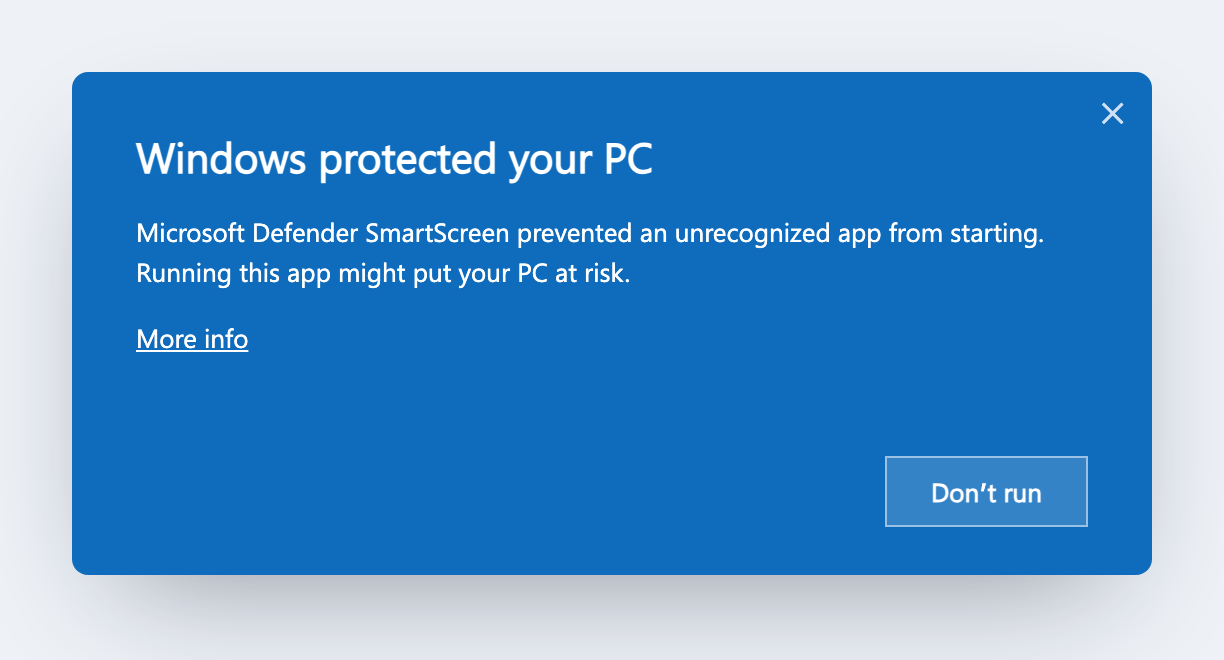
TrueStitch Link_x.y.z_x64-setup.exe. - Windows SmartScreen may warn about an unrecognized app — that's expected for a new app that is still building its reputation with Microsoft. Click More info:
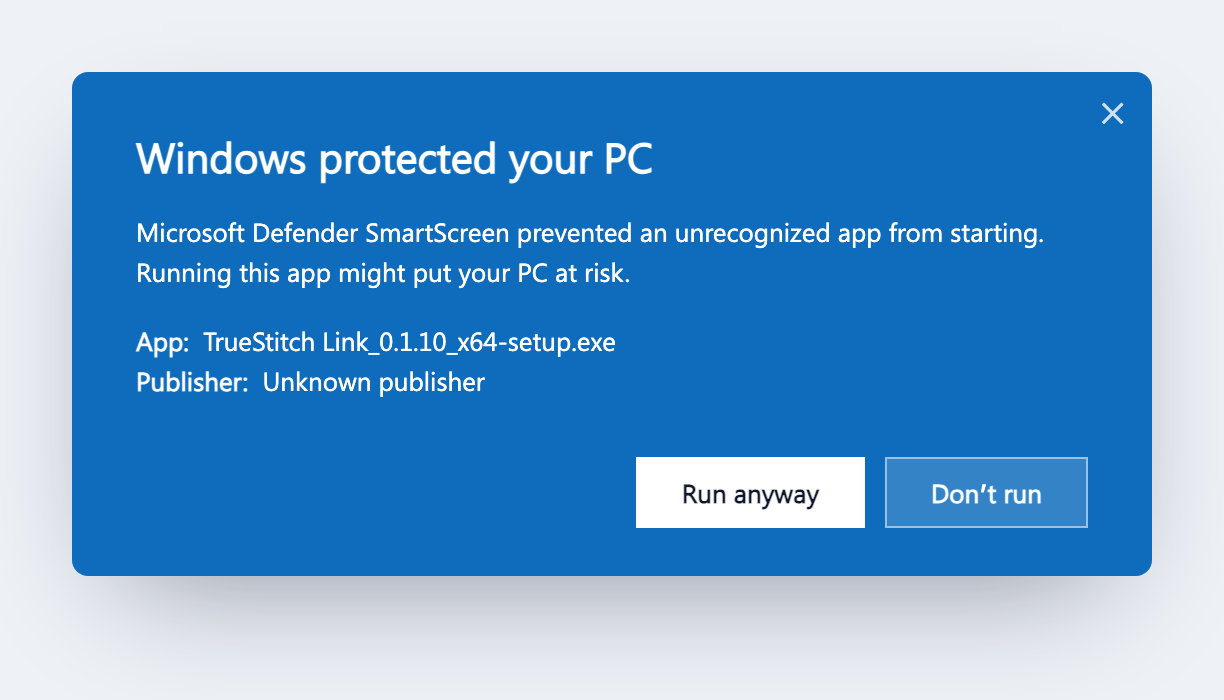
- The dialog expands and shows the app name. Click Run anyway:
- The installer takes a few seconds. TrueStitch Link then starts automatically and appears in the system tray.
Install on macOS
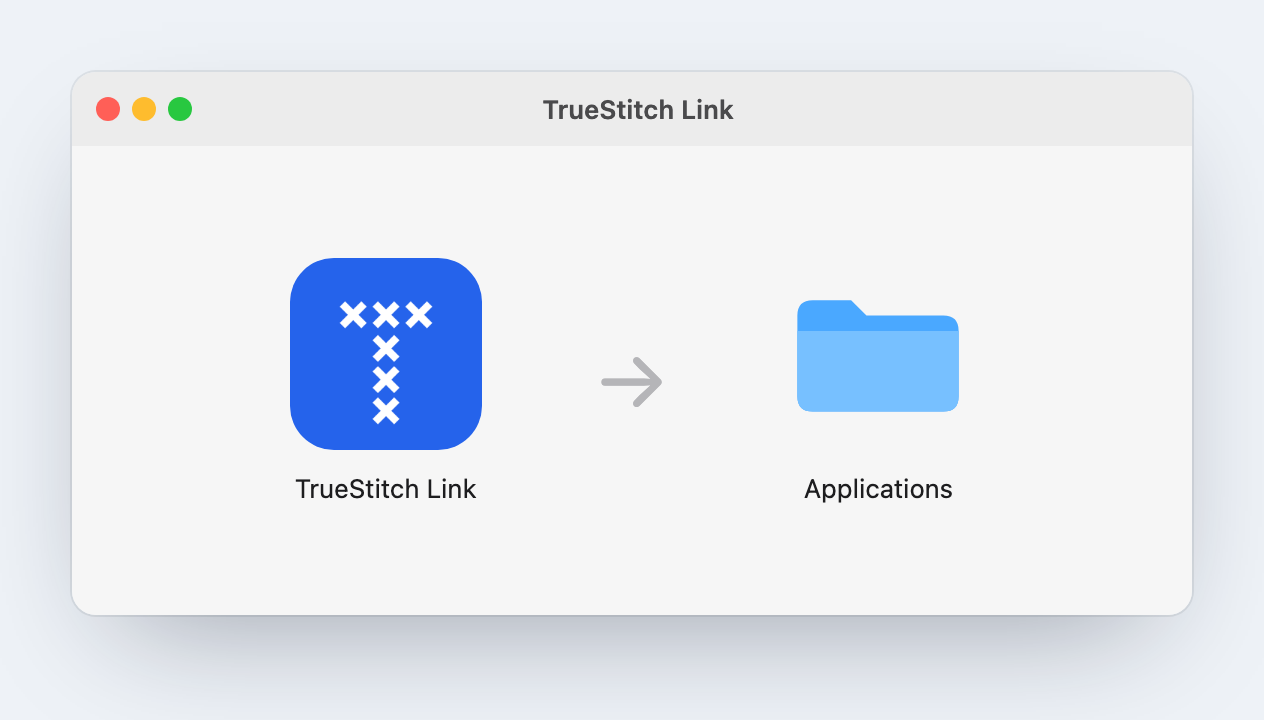
- Open the downloaded
.dmgand drag TrueStitch Link into Applications:
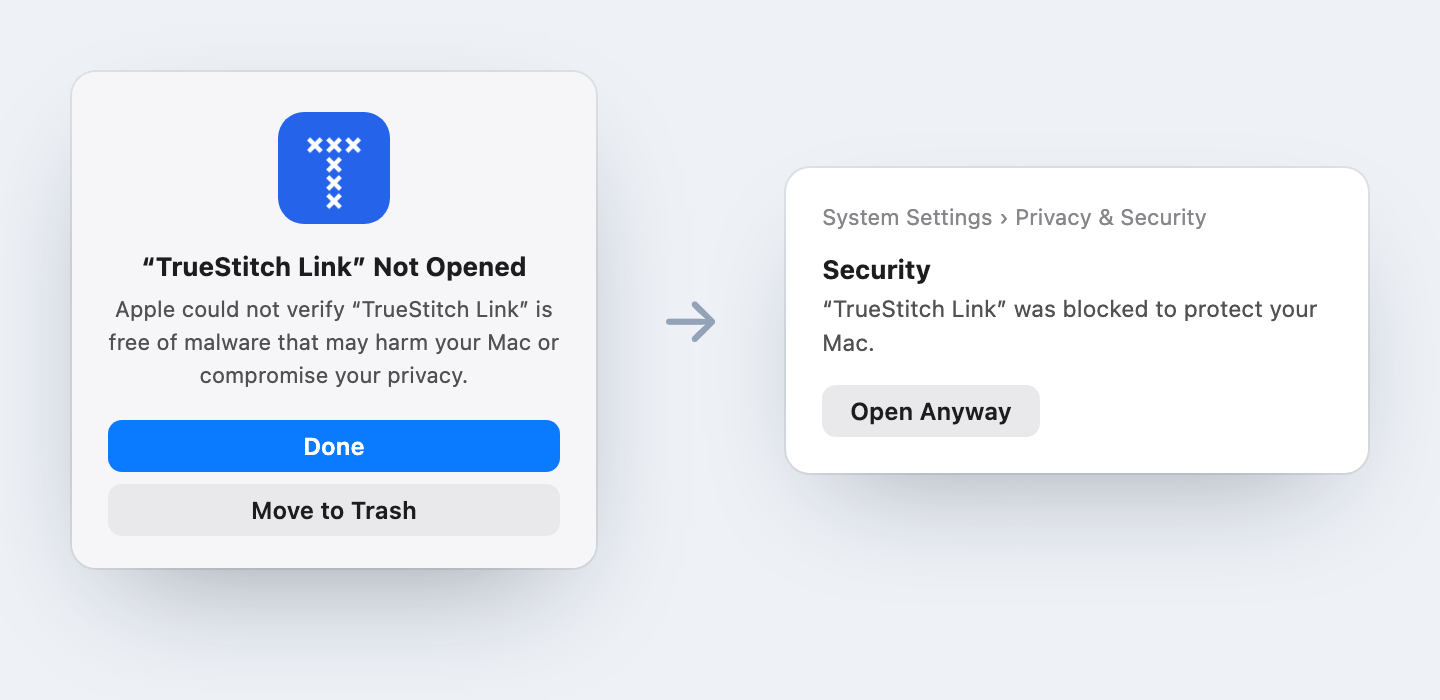
- On first launch macOS warns that it could not verify the app — it isn't in the Mac App Store. Click Done (not Move to Trash), open System Settings → Privacy & Security, scroll down and click Open Anyway:
- This is needed only once — updates install without asking again. On older versions of macOS you can instead right-click the app and choose Open.
Pair with your workshop
Pairing connects this computer to your workshop. You do it once.
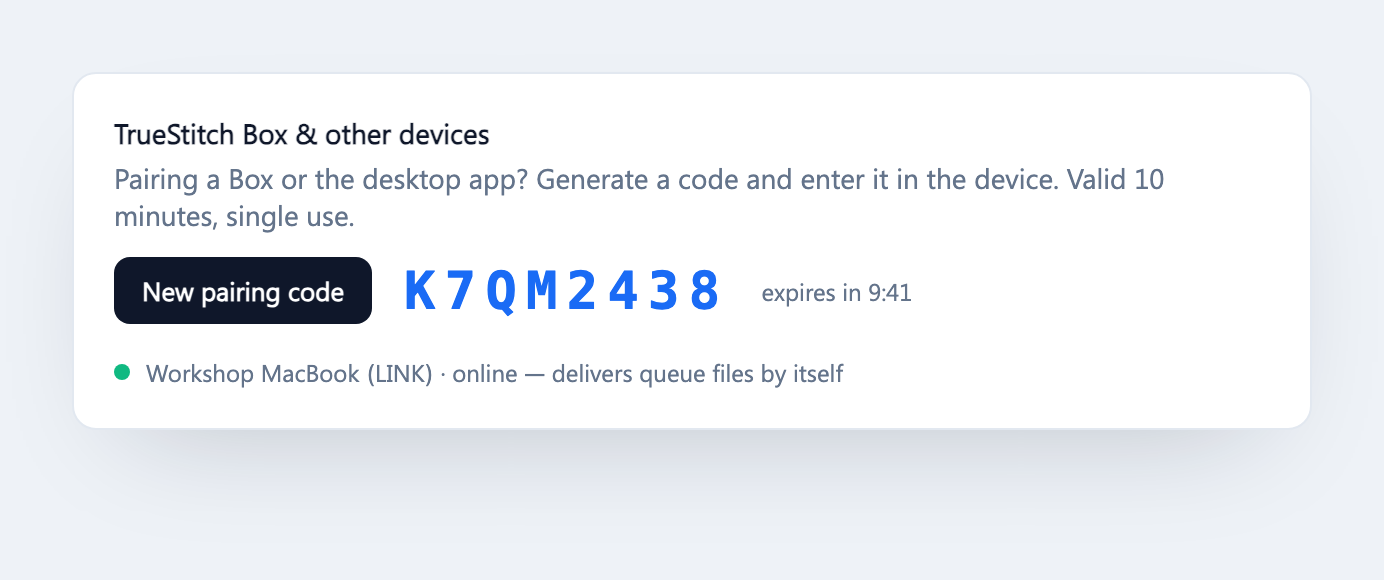
- In TrueStitch Cloud, open Machines and scroll to TrueStitch Box & other devices. Click New pairing code — the code is valid for 10 minutes and works once:
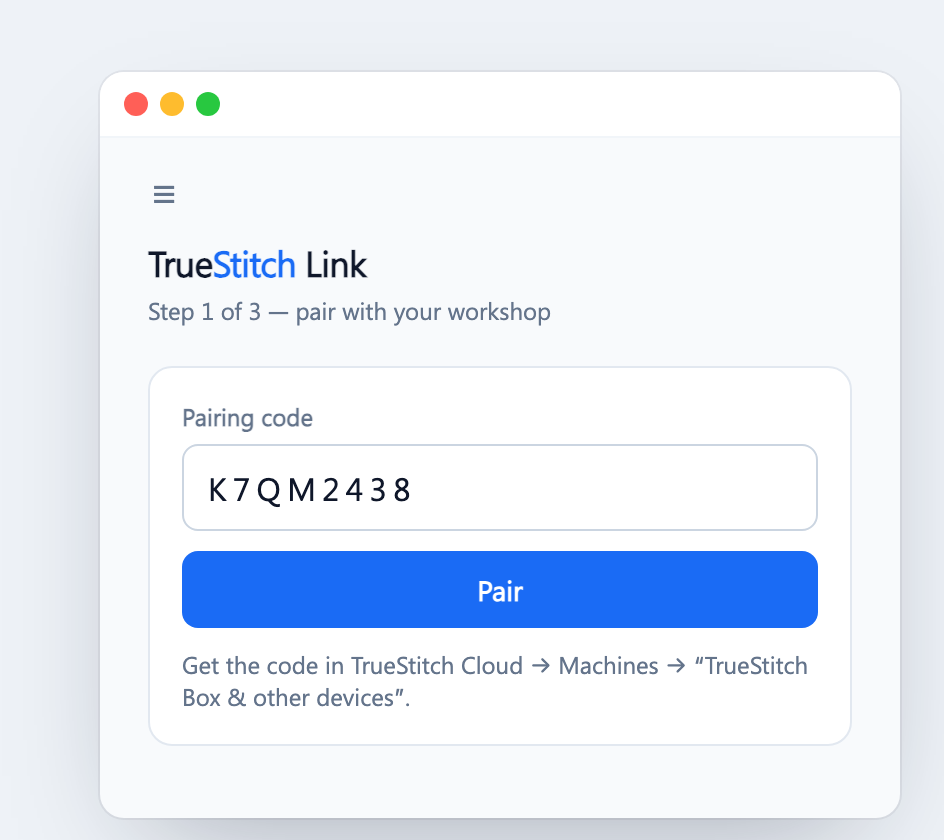
- In TrueStitch Link, type the code and click Pair:
Pick your machine
Choose which machine this computer sits next to. Link delivers only this machine's files — nothing meant for other machines:
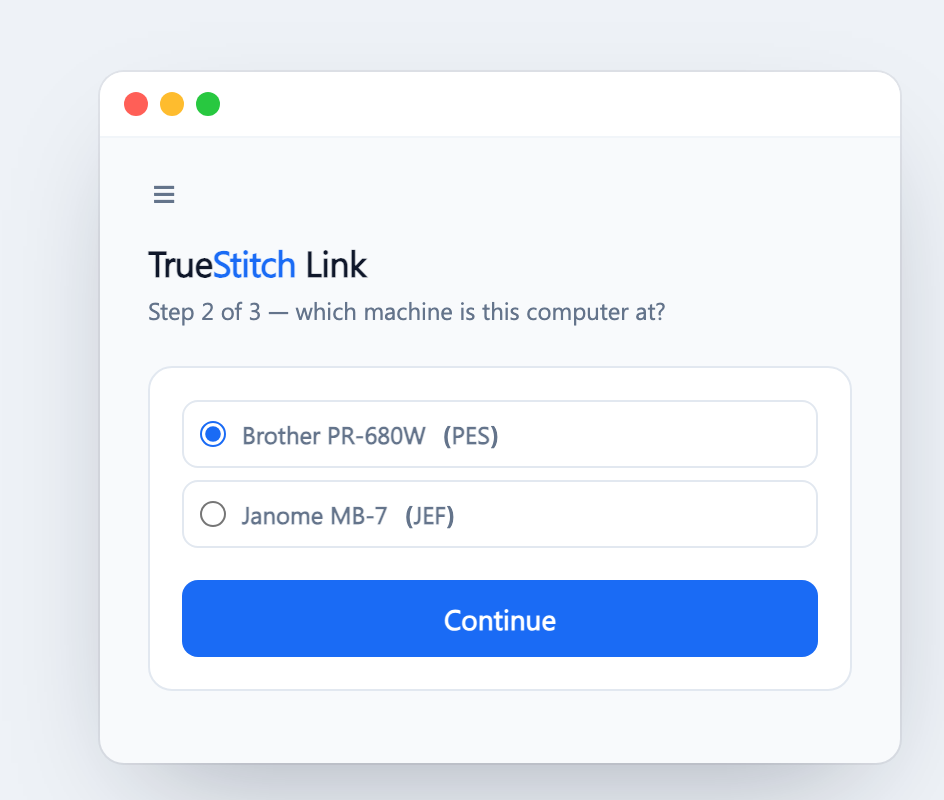
If the machine isn't in the list yet, use the New machine card below it — type a name, pick the file format your machine reads and hit Create & connect. The machine appears in Cloud too.
Choose the folder
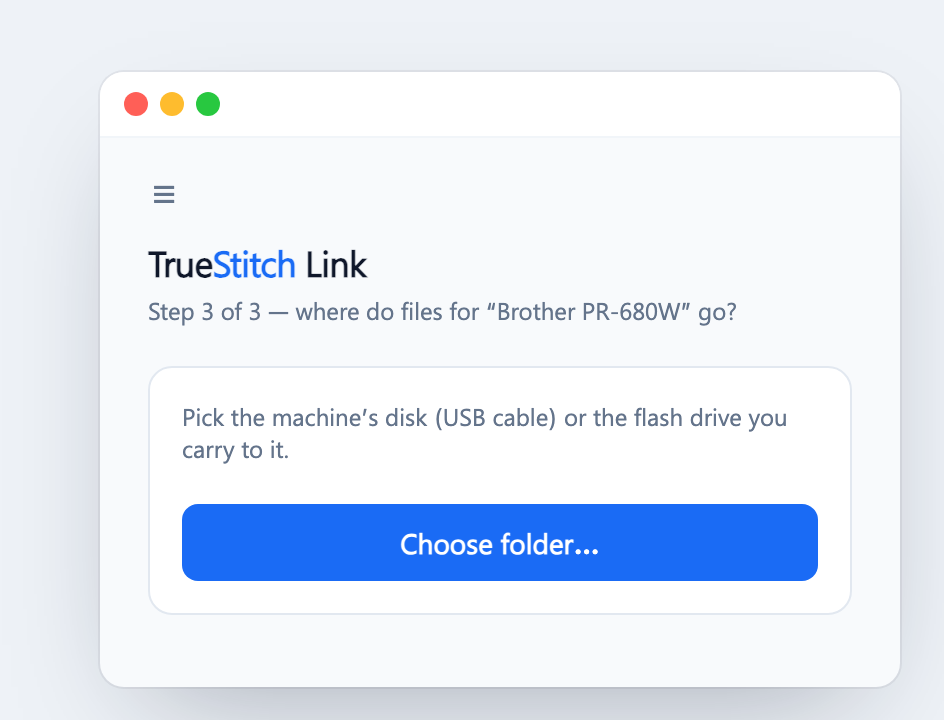
Point Link at the folder the machine reads from — the machine's disk connected over USB, or the flash drive you carry to it:
Done — Link runs by itself
That's it. Link now checks the queue, downloads new machine files into the folder and reports back to Cloud. You can close the window — it keeps running in the tray and starts with the computer:
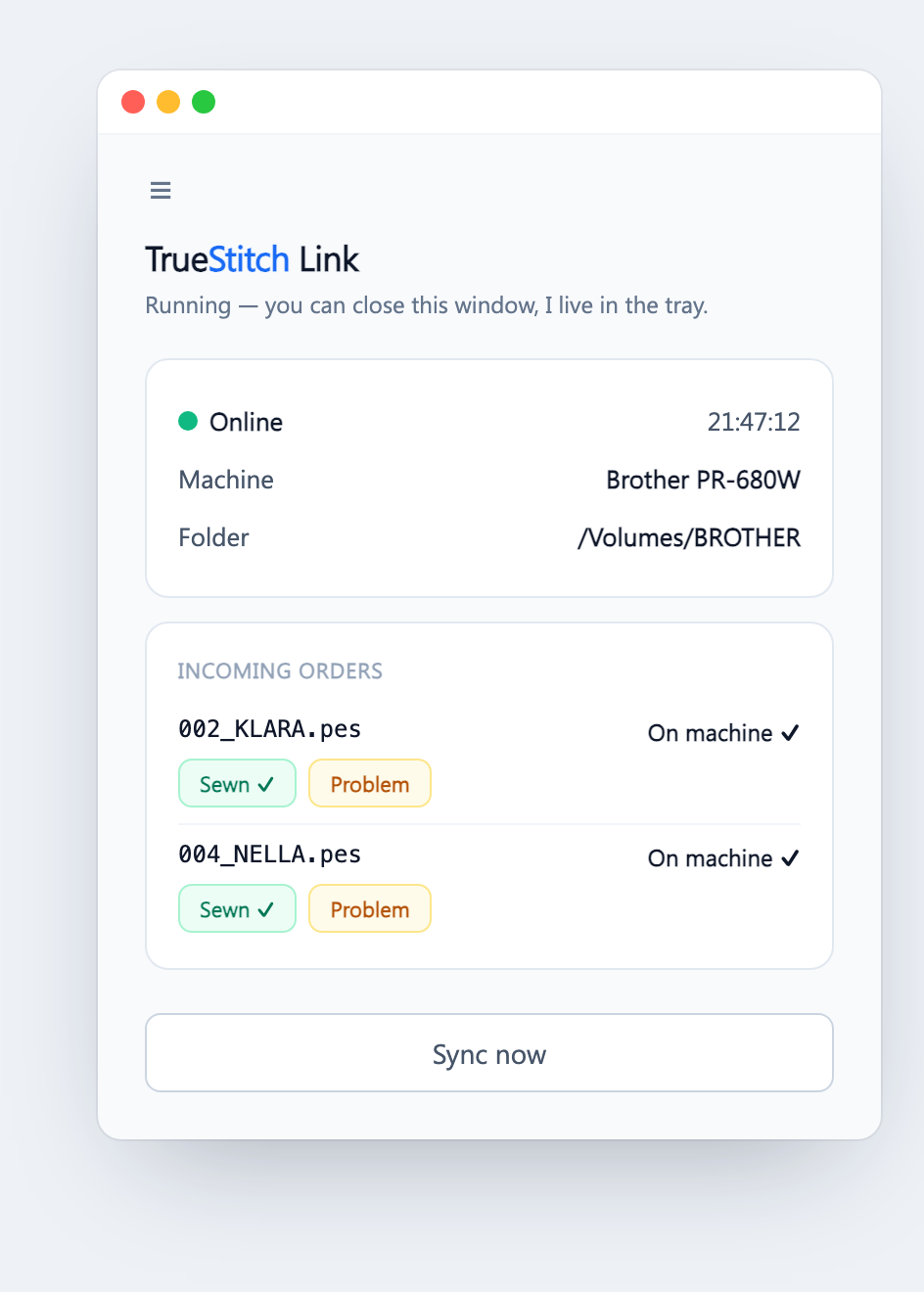
- Sewn ✓ closes an order and cleans its file from the folder.
- Problem flags the order in Cloud so nothing gets lost — you can confirm orders here or in the Cloud queue, they stay in sync.
- In Cloud → Queue, machines with Link online show a green dot in the Machines panel, and files load without the Download button.
Troubleshooting
- Link says Offline — check the internet connection; Link retries by itself and catches up as soon as it's back.
- "Code not valid" — the code expired (10 minutes) or was already used. Generate a fresh one in Cloud → Machines.
- Link went back to the machine selection — the machine was removed or this computer was detached in Cloud → Machines. Pick a machine again.
What's next
- Orders & production — how the queue, statuses and dispatch modes work.